SmartSleep Solves Safe Sleep Situation
Several months ago I complained in “Stewing Over Safe Sleep” (2007-07-30) that my laptop took far too long to go to sleep, thanks to Apple’s default Safe Sleep settings; I also shared a shell script that I used to disable Safe Sleep and return my computer to a more sane state. After quite a bit of reader feedback, I followed that up a month later with “Safe Sleep Revisited” (2007-08-20), in which I presented a more sophisticated script that turns Safe Sleep on or off dynamically based on your current battery level. But I still felt it was a shame that it required command-line fiddling to achieve the sort of behavior I wanted.
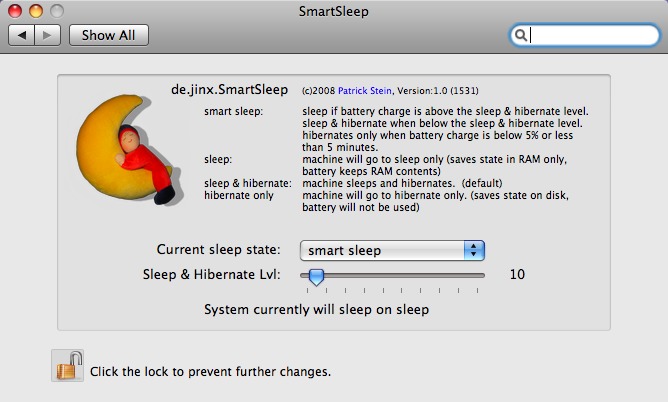
Now, thanks to a free preference pane by Patrick Stein called SmartSleep, those of us with Mac laptops that sleep in what we regard as the “wrong” way can tailor sleep settings to our liking with just a couple of clicks. SmartSleep lets you choose exactly what happens when you put your computer to sleep. The default behavior (“sleep & hibernate”) is to save your computer’s RAM to disk before sleeping – that’s what I dislike because it takes too long, though it lets your Mac recover almost instantly from a complete loss of power. You can also choose “sleep” (the default on earlier Mac laptops) which sleeps immediately without copying RAM to disk; “hibernate,” which saves the RAM and then
powers down completely when the computer sleeps; and my favorite, “smart sleep,” which dynamically turns “hibernate and sleep” mode on or off depending on your battery’s current charge (the threshold is adjustable with a slider), and goes straight to “hibernate” only when your battery’s charge is less than 5 percent. In other words, the “smart sleep” setting goes a step further than my script did, and with a lot less effort. There’s even a button to delete your sleepimage file, if any.
One tip: if you double-click the preference pane file to install it, Mac OS X asks whether you want to install it for all users, or just the current user. You must select Install for All Users of This Computer, which puts the file in /Library/PreferencePanes – the only location in which it works properly.