iTunes 8 Gains Per-Podcast Settings
Three years after adding podcast support to iTunes (with iTunes 4.9 in mid-2005), Apple has finally given us the ability to control podcast download and retention settings on a per-podcast basis. Until now, you could set what iTunes would do when new episodes of a podcast became available and how many episodes to keep, but those settings applied to all podcasts equally. That one-size-fits-all approach made little sense, and in his introductory article about iTunes 4.9’s podcast handling, “Take Control of Podcasting on the Mac” author Andy Affleck noted that he wanted different settings for highly perishable news podcasts than for a radio show that his son liked (see “Apple Releases iTunes 4.9
with Podcasting Support,” 2005-08-04).
With iTunes 8, podcast settings have moved from a screen in the iTunes preferences window to a standalone dialog that you access by clicking the Settings button at the bottom of your list of subscribed podcasts (click Podcasts in iTunes’s sidebar to view them). The Podcast Settings dialog looks almost exactly like the previous settings interface, with the addition of a pop-up menu from which you can choose any of your subscribed podcasts.
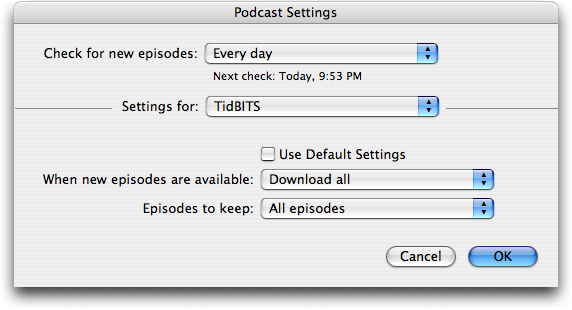
At the top of the dialog is a Check For New Episodes pop-up menu, which remains a global setting that applies to all podcasts. From it, you can choose Every Hour, Every Day, Every Week, or Manually. Although an argument could be made for making this setting podcast-specific too, I think Apple’s decision to reduce complexity by applying this setting across all podcasts is correct.
Next comes the Settings For pop-up menu, from which you can pick any podcast to which you’re subscribed, or, from the top, Podcast Defaults, which is where you set your default options. Then, for each individual podcast, you can deselect the Use Default Settings checkbox and change the options as you wish.
Those options are two-fold. First, when new episodes become available, set whether you want iTunes to Download All, Download the Most Recent One, or Do Nothing. This last option is great for a podcast to which you want to stay subscribed, but for which you want to snag only the occasional episode by hand.
Second, set how many episodes you want iTunes to keep: All Episodes; All Unplayed Episodes; Most Recent Episode; or Last 2, 3, 4, 5, or 10 Episodes. This is the key setting, since with it you can finally convince iTunes to hang on to the number of episodes that makes sense for how often you listen to a particular podcast, how interested you are in that podcast, and (roughly) how much disk space you wish to allot to podcasts.
Don’t discount the disk space issue. I tend to go through phases of listening to podcasts depending on how much yard work I’m doing or time I’m spending in the car, and they can really build up on me. In fact, now that I check, it seems that my Podcasts directory is over 10 GB! I’ll leave you to fiddle with your own iTunes settings now – I need to do some cleanup.