BBEdit 16 Searches for Text in Images, Adds Shortcuts Actions, and More
Some apps are never done. Bare Bones Software’s BBEdit first appeared in 1992, and it would be fair to ask—after 34 years of updates and 15 major versions—what new features could possibly be added to one of the most foundational of apps: a text editor. Happily, Rich Siegel and the team at Bare Bones continue to find new areas to explore within the text editing space, and BBEdit users continue to suggest new capabilities. Thus, we now have BBEdit 16, with a grab bag of improvements.
- Search for Text in Images: BBEdit is known for its searching prowess, but version 16 extends that in an unexpected direction: images. Thanks to Apple’s VisionKit, which enables apps to perform optical character recognition on the text within images, BBEdit can now find text within images on disk. To use this feature, open the Multi-File Search window, click Other to select a folder containing images, click Options to enable “Search for text in image files,” then run the search. When you select an image result, a preview of the found image appears, with the line containing the search string highlighted.

- Expanded Shortcuts support: BBEdit’s text transformation capabilities are so useful that longtime users often want them in other apps as well. BBEdit 16 introduces a comprehensive set of text transformation actions in Shortcuts that let you work with document text, replace all, process lines, and a slew of additional capabilities (in Transform Text) taken from BBEdit’s Text menu.

- W3C HTML checker service: When you’re working on HTML documents, BBEdit’s syntax checking now relies on the W3C’s official HTML validator, which is the canonical reference. This feature does require BBEdit to send your HTML files securely to the W3C, but Bare Bones never sees your data, and the W3C doesn’t retain any submitted data. However, if you’re still concerned, Bare Bones provides instructions for running the checker locally.
- Notebook filtering: A new search field appears at the bottom of the sidebar in the Notes window. Use it to search for text in the notes’ names or content, and filter the list in the sidebar to matching items.
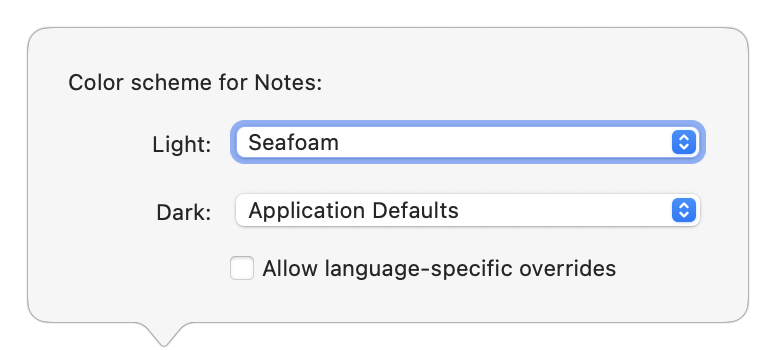
- Project-specific color schemes: If you juggle multiple projects and want to distinguish them at a glance, BBEdit 16 now offers per-project color schemes. Separate color schemes are also available for instaprojects (the temporary projects BBEdit creates when you open a folder) and notebooks; click the little gear icon at the bottom of the Notes sidebar to access them.
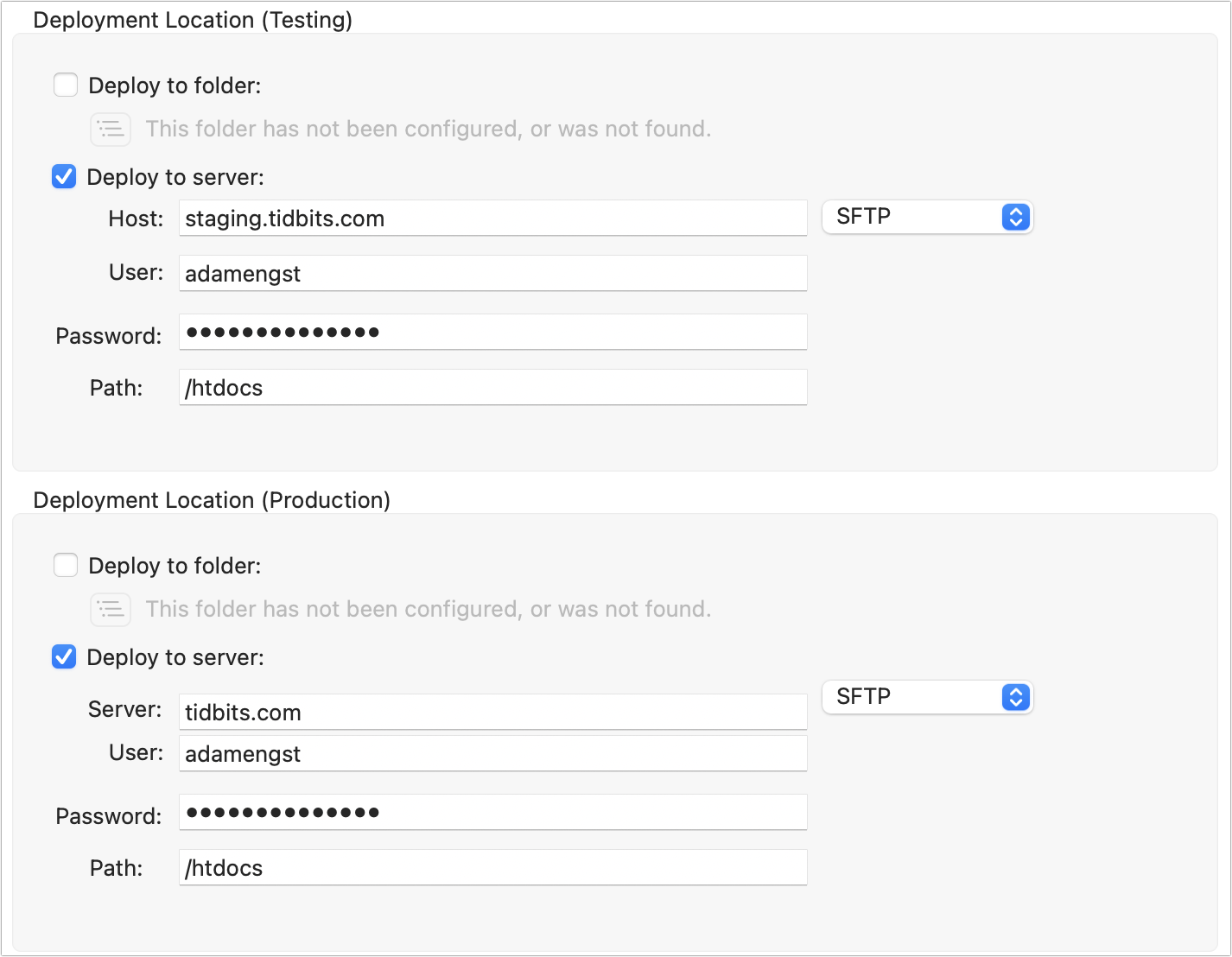
- Website projects now support staging sites: Many professional web development setups feature two servers: a staging server for testing new pages and code, and a production server that users access. To make it easier to deploy to one location and then the other without changing the configuration, BBEdit 16 now offers two separate deployment locations in a website project’s settings. There’s no functional difference between them—they simply have different names.
- vi keyboard emulation: Answering a long-standing request, BBEdit 16 now offers vi keyboard emulation for those people whose fingers are hard-coded to navigation and editing commands for the vi command-line editor. Turn it on in BBEdit > Settings > Keyboard. Note that
:qwill close the active document rather than quitting BBEdit. (vi is highly modal, which has led to the editor-wars insult of “vi has two modes: beep repeatedly and break everything.”) Rich Siegel drily noted that he’s never touching this feature again, other than to fix bugs. - More changes: As is always the case with BBEdit, there are many more small tweaks and enhancements, such as vastly improved SFTP performance, streamed responses in AI Chat Worksheets for more fluid interaction, support for the standard macOS sharing mechanics, a View > Gather Untitled Documents command that collects all untitled documents across multiple windows, a View > Move to Window command that lets you move a document to a specific window even if you can’t see it to drag, Import and Export buttons in BBEdit > Setup > Patterns for sharing searches, and display of Unicode code point names in Window > Palettes > Character Inspector.
BBEdit 16 requires macOS 14 Sonoma or later. The upgrade to BBEdit 16 is free for anyone who purchased BBEdit 15 on or after 1 November 2025, $29.99 for other BBEdit 15 owners, and $39.99 for owners of earlier versions. New copies of BBEdit cost $59.99. Those subscribing to BBEdit through the Mac App Store gain access to all the new features upon installing the update.
Bare Bones continues to make the basic feature set of BBEdit 16 available in Free Mode to everyone, with a 30-day trial of the more advanced features. Those who have been using BBEdit in Free Mode get a fresh 30-day evaluation period to test the new features, after which it will return to Free Mode. Frankly, if you ever work with text files, it’s worth having BBEdit on your Mac because its Free Mode provides all the features most people will ever need.


You say “What new features could possibly be added”…the one missing feature that caused me to leave BBEdit many years ago (first for Sublime Text and then for VSCode), is non-modal find and replace. The fact that BBEdit’s otherwise excellent find-and-replace dialog box is still modal (or was, as of version 15, the last version I bought), just astonishes me. I am sure many users are content with it, but it drove me nuts and I could not wait to get away from that.
Please realize: I think BBEdit is amazing. It is rock solid, it has many wonderful and innovative features. I find BBEdit’s side by side diff much more pleasant to use than in any other editor I have used. Furthermore, the company is beyond generous to provide both a free, very capable version and charge so little for the full version and updates.
I kept my version current for many years just so I could have good side-by-side diff (much better, in my opinion, than that in VSCode). But I finally bought a copy of Beyond Compare for diff, and though in some ways I think BBEdit does it better, I wanted 2-way and 3-way diff.
I do not intend to start a flame war. Editors are very personal things and one should try out the options and use one you like best. I will also say that, although I really like VSCode, I am uneasy using free software for something as important as a code editor. Which is another reason I used to keep my BBEdit current. Everybody benefits when there are choices.
While I don’t immediately see any new feature I think I need, and was not even aware of some of the existing features which had been improved, I will upgrade to 16. Whenever I’ve needed support they are very responsive, and I just feel we should keep supporting these developers. And I use BBEdit every day!
In the article I found this funny: “vi has two modes: beep repeatedly and break everything.”
It’s not modal. It’s just a separate window; you can move it to the side, leave it open, and interleave edits and find-replace operations as you please.
Just a heads up for those who haven’t installed version 16 yet. I just upgraded to version 16 and found that it did not transfer my settings (font, default window size, etc.) from version 15. The user manual tells how you can use Terminal to export settings from a previous version (I retrieved mine from a second user account that I had set up) but after importing them into version 16 it really didn’t help.
On the other hand, by going through all the settings again to get version 16 behaving and looking like the BBEdit I was used to, I found several new functions that I didn’t know were there.
As others have said, it truly is an amazing piece of software and it’s admirable that Bare Bones makes the basic functions free for those of us who don’t need the advanced functions. It’s one of my most often used apps.
Glad you didn’t rush your purchase of BeyondCompare (I’d been nagging for word-wrap for a quarter of a century), but your comparison is unfair: BeyondCompare is a dedicated cross-platform single-use tool which does its only job magnificently (now that it word wraps) but clunkily. The world is better for both its and BBEdit’s existence.
Thanks for the correction and my apologies! I am very glad to be wrong. I am not sure when they switched it, but it was clearly after I had already moved to Sublime Text (and then VSCode). I may buy for the version 16 update just to support the company.
The major improvement I was hoping for is multiple simultaneous selection of text (beyond the existing columnar/rectangular selection). I have a difficult time using a text editor that lacks this feature, and it’s disappointing to hear that Bare Bones has still not added it.
Huh! That worked fine for me. Perhaps you can restore those settings from a backup?
While this isn’t the same as the multiple cursors that some other editors have, there is a “Find & Select All” command. If you search for, say, “rabbit” using any find command and then choose this command, all the occurrences of “rabbit” will be selected, and you can type “bunny” to replace all of them at once, hit Delete to delete them all, etc.
After reading the article (and translating it into Japanese for TidBITS-Japanese,) I downloaded and tried BBEdit for the first time. – My conclusion: It is totally unusable as a Japanese text editor!
The reason: Line wrapping is broken. First, ‘Soft wrapping’ is not working (at least I don’t understand it), and so I have to use Text > Hard Wrap, which is miserably broken.
Suppose I am writing the following text:
_Jony Ive と Marc Newson がデザインした自動車 Ferrari Luce の普通でないインテリアが気になったなら、これをご覧あれ。かつて電気自動車 (EV) など実現しないと言っていたにもかかわらず昨年 EV の開発に乗り出していた彼らだったが、今回 Ferrari がついに最終的な製品を私に披露してくれた。
Without wrapping, the whole thing becomes a long line that auto-scrolls horizontally, but that is NOT what I want. I cannot see the earlier part of the paragraph, which doesn’t make sense when I am writing.
So, I definitely need text-wrapping. I tried Settings > Editor Defaults > Soft wrap to: Character width: 35, but that did not have any effect - the paragraph is still a long line.
Then I found the Text > Hard Wrap menu item. I used it, and the paragraph changed into:
_Jony Ive と Marc Newson がデザインした自動車 Ferrari Luce
の普通でないインテリアが気になったなら、これをご覧あれ。かつて電気自動車
(EV) など実現しないと言っていたにもかかわらず昨年 EV
の開発に乗り出していた彼らだったが、今回 Ferrari
がついに最終的な製品を私に披露してくれた。
which is miserably broken. What I want is something like below:
_Jony Ive と Marc Newson がデザインした自動車 Ferrari Luce の普通でな
いインテリアが気になったなら、これをご覧あれ。かつて電気自動車 (EV) な
ど実現しないと言っていたにもかかわらず昨年 EV の開発に乗り出していた彼
らだったが、今回 Ferrari がついに最終的な製品を私に披露してくれた。
It seems the BBEdit’s ‘Hard Wrap’ wraps lines ONLY at space characters, but that does not make sense in Japanese text, where the space character is rarely used (only used between Japanese and alphabetical characters. Purely Japanese text without alphabetical characters does not use any space character.)
So it seems that BBEdit is unusable for writing Japanese text. - I am back to the venerable Japanese text editor: Jedit.
Also, BBEdit does not seem to have the Auto-Space option. If I type the following:
Jony IveとMarc Newsonがデザインした自動車Ferrari Luceの普通でないインテリア
into Jedit, then Jedit automatically inserts a space character between Japanese and alphabetical characters, that produces:
Jony Ive と Marc Newson がデザインした自動車 Ferrari Luce の普通でないインテリア
Much better to look at. But BBEdit doesn’t seem to do this.
Thanks for this. Very interesting. I continue to learn new things every day. I didn’t know that Japanese didn’t use space characters. Knowing that, I’m not surprised that BBEdit won’t work for you since the space character in English is the standard place to break a line for wrapping.
The international flavor of TidBITS Talk is one of the things I really value here. Thanks to all of you (us) for being part of the team!
“We could learn a lot from crayons: some are sharp, some are pretty, some are dull, some have weird names, and all are different colors, but they all exist very nicely in the same box.” - Anonymous
I love BBEdit. There. I’ve said it.
It has had more than thirty years of extensive feature additions and improvements, yet it remains true to its original purpose of being a simple text editor.
I’m pretty sure that I started using it as soon as it was released, and I’m also pretty sure that a time traveling BBEdit user from the 1990s would be at home immediately with the 2026 version, and vice versa. The vision has been consistent and correct from the beginning, leading to decades of thoughtful enhancements. How many other tools can you say that about? Thorsten Lemke’s GraphicConverter? One or two others?
On top of that, Bare Bones Software is one of the very few commercial developers known for responsiveness, and BBEdit’s copious release notes are second to none. BBEdit upgrades are among the few that I pay for with enthusiasm and without hesitation.
Sure, I pull out other text editing tools from time to time, but BBEdit is the one program that is always open on my Mac.
Thank you @siegel!
PS. I’m happy to see that people still have new feature suggestions after so many years of development. It’s great that something as “simple” as a text editor is still fertile ground for progess.
I have never used Shortcuts, and was excited to read about using BBEdit’s text transformation capabilities in other apps. I work as an editor in Word and use BBEdit a lot for text work (whipping references into shape, for example). Alas, I can’t seem to be able to make them work at all. Are there any actual examples out there yet, ideally using the Shortcuts in Word?
True, it’s not modal, but it is a separate window. I agree with the original poster, I really like apps that have the find/replace functionality built into the editing window. This is now the standard way for find/replace on macOS, and is the default if an app uses the macOS text editing APIs. Of course BBEdit doesn’t use Apple’s text editing APIs, but it would be nice if they adopted this behavior (I haven’t looked at BBEdit 16 yet so maybe they do?).
BBEdit does have a live search bar within windows: Search > Live Search (Command-Option-F). It can do grep, but you don’t get all the options that are in the full Find window.
How about that, I’m glad I mentioned it. Guess I probably could have been using that for years! I’ll definitely be using it now - I should probably set up a button on my Stream Deck for that
@mjtsai’s responses to the BBEdit 16 changes. Well worth a read for anyone deep in BBEdit.