Fighting a Denial of Service Attack with AI Assistance
For those who want to skip to the main point, TidBITS experienced a denial of service attack last week, making our website inaccessible for a few hours on Wednesday. I was able to bring it back online using Cloudflare’s Under Attack Mode, and on Thursday, I adjusted Cloudflare’s rules to block some of the malicious traffic while caching the rest. However, on Friday, I learned that some TidBITS readers might be unable to load the site because of ancient bookmarks that include now-blocked @ characters. If you see Cloudflare errors, try visiting tidbits.com directly. If that doesn’t work, please email me.
Last Wednesday, I woke up to alerts from different monitoring systems about issues on my server. Jetpack kept informing me that the TidBITS Content Network site was going online and offline, and Cloudways sent emails about my nightly backup failing and the server having high CPU usage. When I tried to load the TidBITS site, it either took a long time or didn’t load at all.
Since my developer now has a day job, he can’t drop everything to help like he could when he built the site as a freelancer. So I filed a support ticket with Cloudways and started investigating the issue. Due to the reliability of modern virtual servers, I have little experience troubleshooting in our current setup, so I decided to see if Claude could assist. In short, Claude proved to be a huge help, and my only regret was that I didn’t switch to an agentic browser like ChatGPT Atlas, Comet, or Dia to see if they could have analyzed the contents of active tabs without me having to paste text and screenshots.
Troubleshooting with an AI Assistant
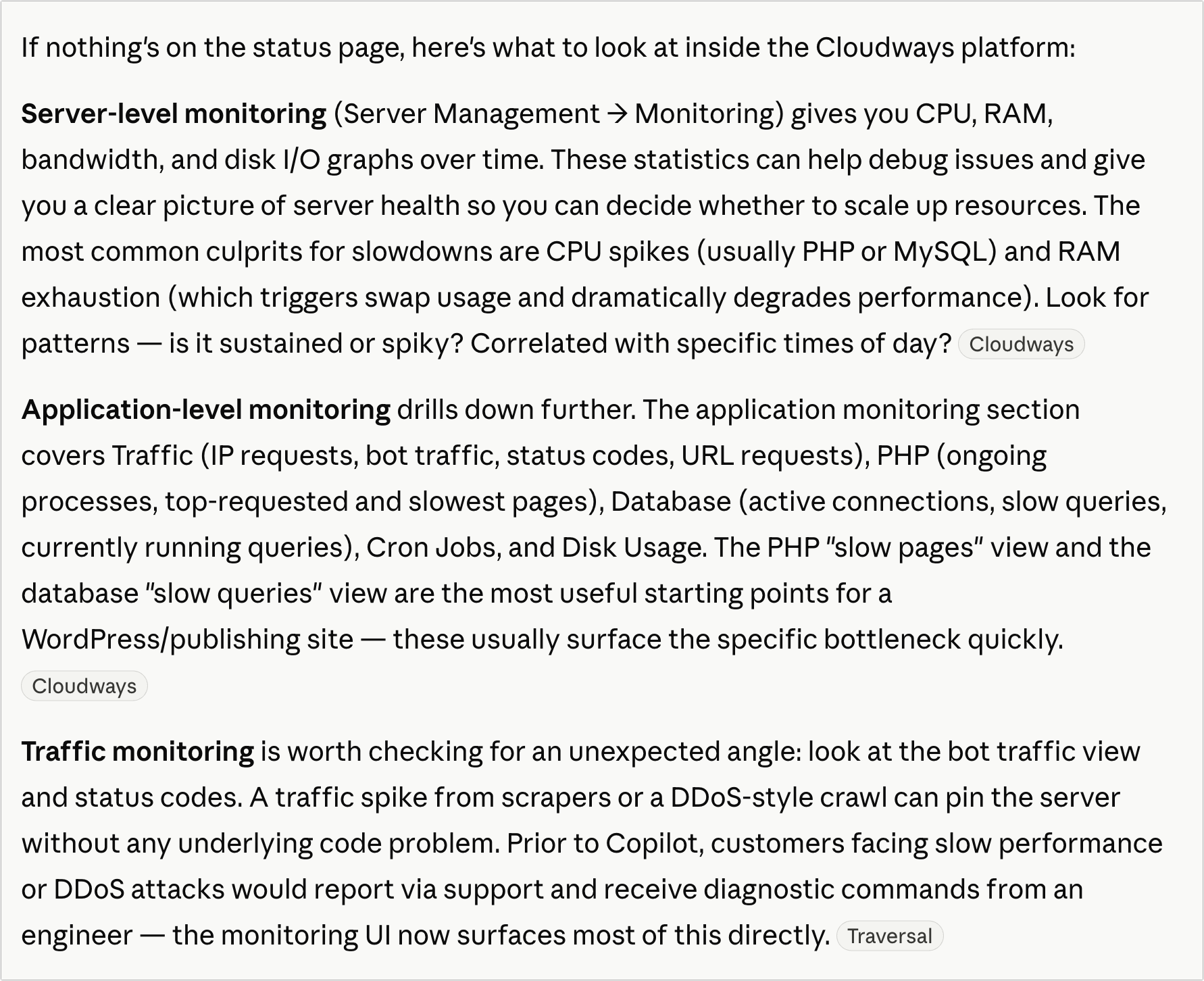
I started with a fairly general query: “My TidBITS server at Cloudways is having problems. It’s either being really slow or going down entirely. What can I do at Cloudways to see what’s happening?” Claude’s initial advice was solid: rule out a Cloudways outage (there wasn’t one), check server-level monitoring, and drill in with application-level monitoring. I might have figured these things out myself, but since I haven’t had to do much at Cloudways since we set up the server almost two years ago, I’m unfamiliar with the interface. Claude’s directions included navigation paths to the specific monitoring reports I needed.
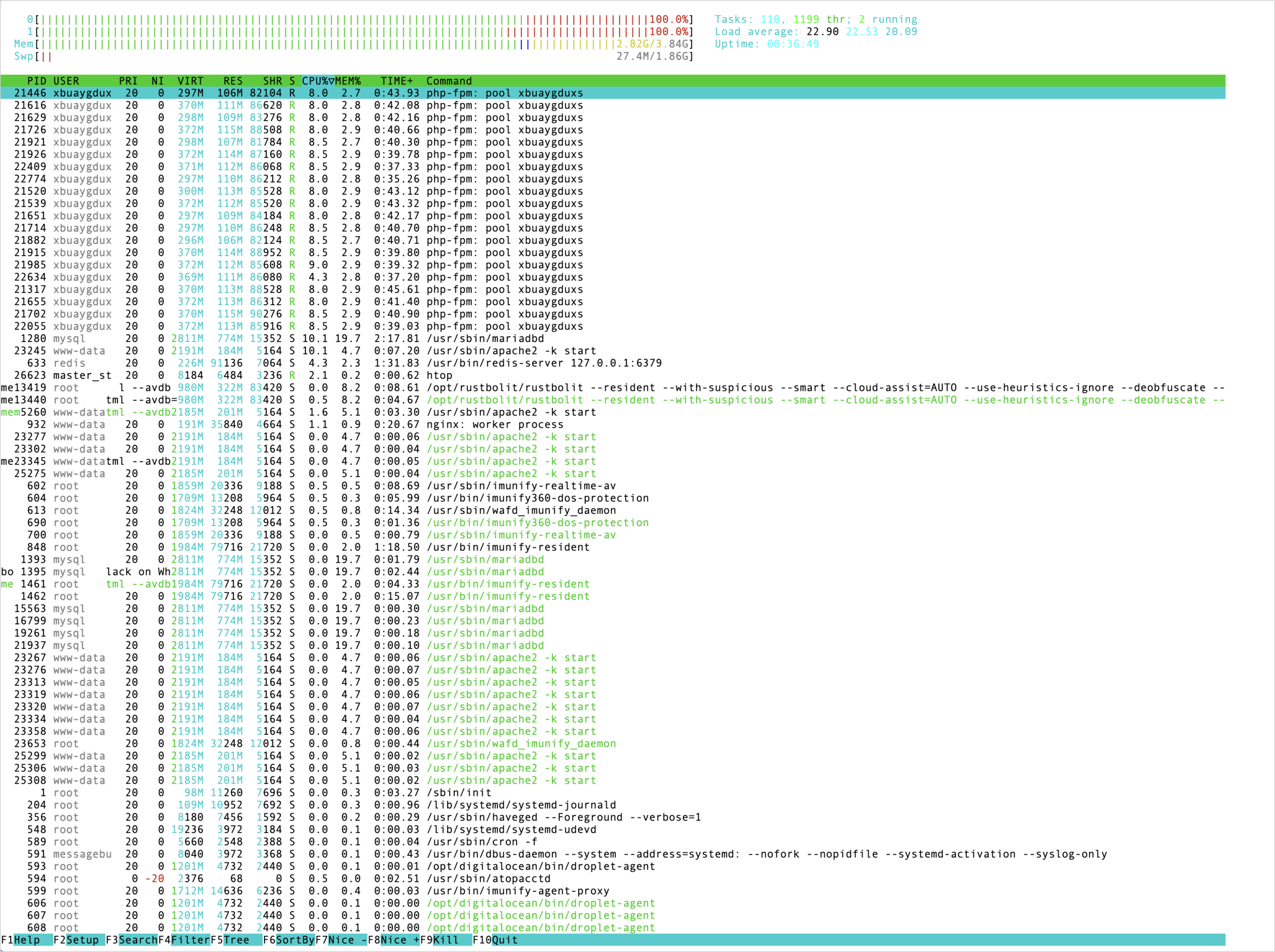
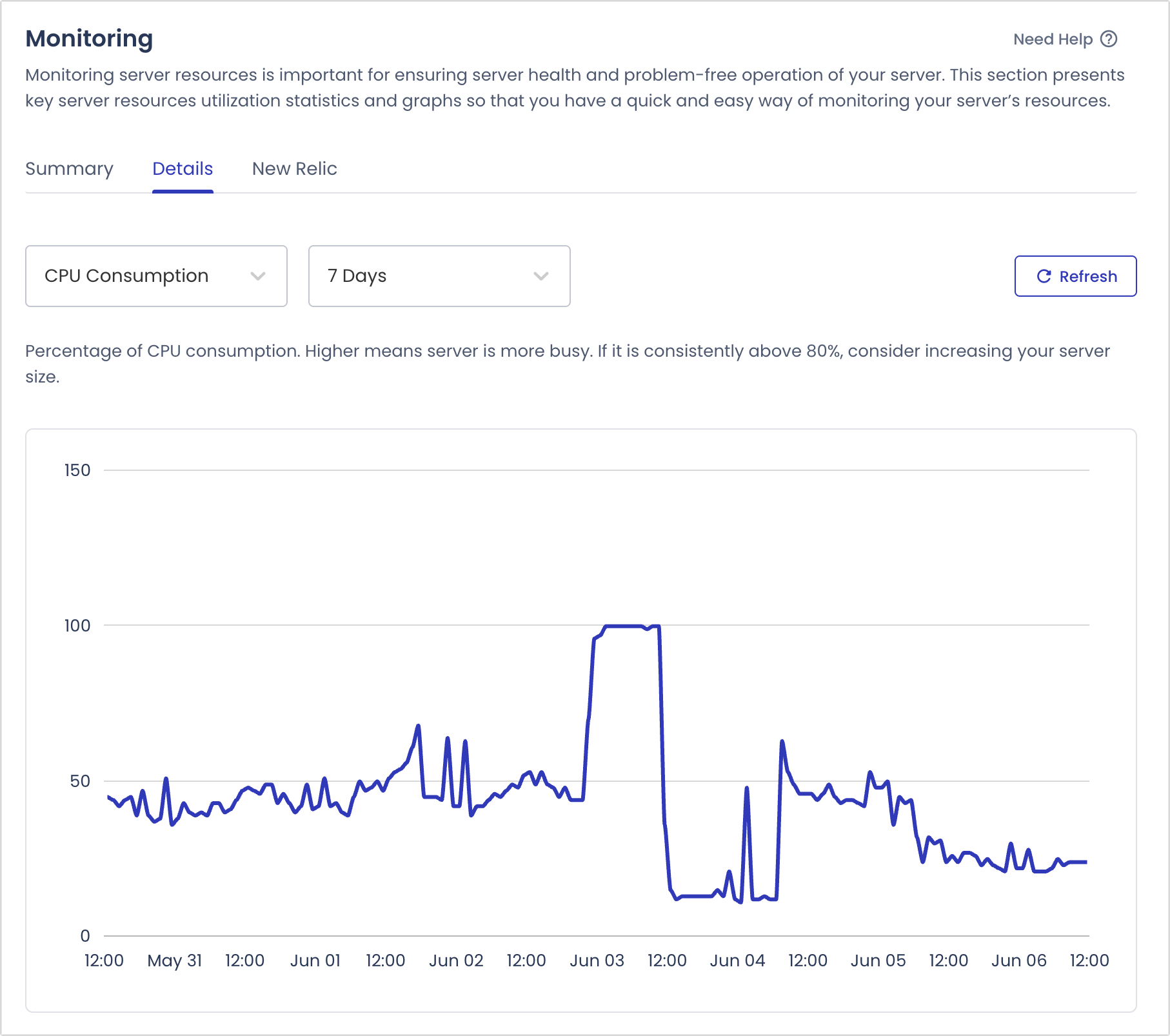
The server-level monitoring revealed that CPU usage was pegged at 100%, and when I informed Claude of that fact, it made a number of suggestions, and I took the first one, which was to run htop in an SSH terminal session. I am somewhat familiar with top, but the interface in htop looks a bit different, so I took a screenshot and pasted it into the Claude chat. It did a great job explaining what everything meant and how I could learn more about the traffic causing the issue.
One big problem with Claude’s instructions is that they often gave me four or five things to try next, but I could do only one before needing to ask for more help or additional details. If I do this again, I’ll try prompting it to focus on a single path at a time and offer alternatives only when I ask. Another issue—which is common when getting help from AIs—is that Claude sometimes mislabels interface paths and command names because the service has changed over time. This can happen even when the AI is performing searches rather than relying solely on training data; I’ve seen plenty of instances where a company updates the interface of its Web app before updating its documentation. The workaround, which generally works well, is to paste a screenshot into the chat and explain that you can’t identify the desired command. Eventually, the AI figures out how terminology has changed or suggests something that clues you in to the new name or location.
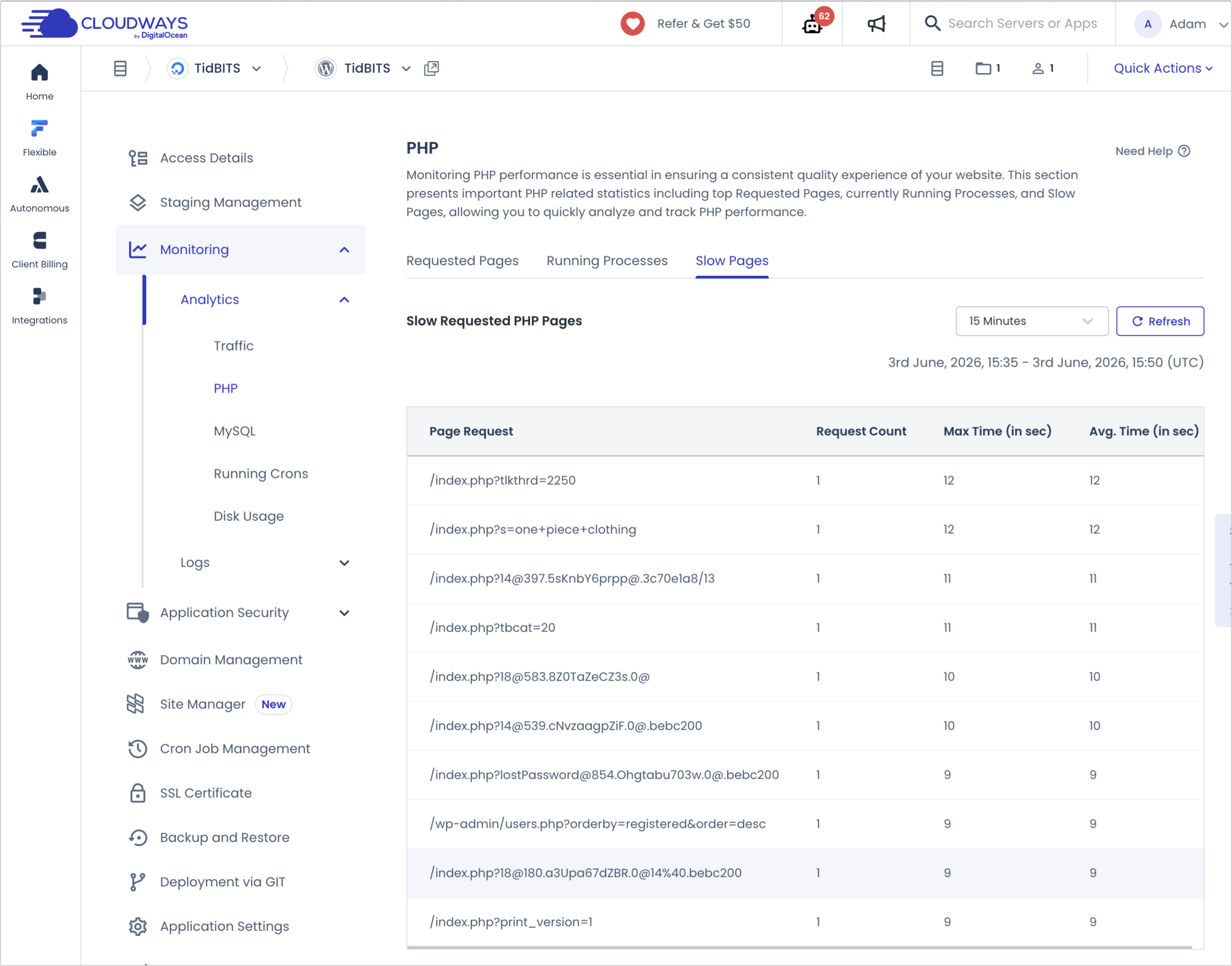
After some back-and-forth about Terminal commands and interface directions, Claude directed me to the Cloudways slow pages report, which displayed the URLs that were taking a long time to load. Nothing in it seemed particularly problematic to me, but when I showed Claude the screenshot, it highlighted the numerous URLs that used @ characters. It was mistaken about what they represented, but it was correct that they were a problem—more on that later.
Implementing the Fix
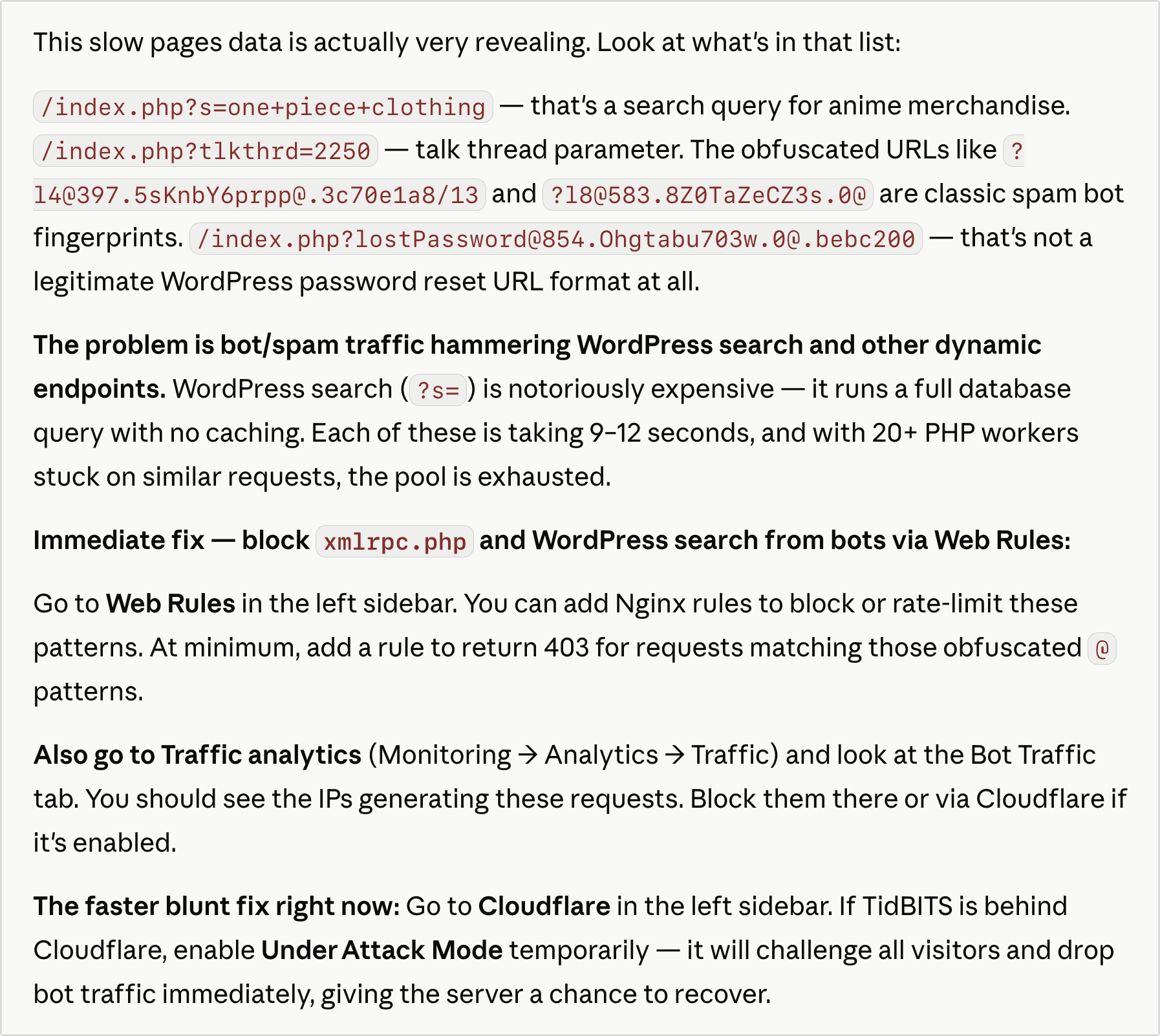
With that awareness, I skipped several targeted suggestions from Claude and went straight to “the faster blunt fix right now,” which was to turn on Cloudflare’s Under Attack Mode. I was a little surprised that Claude correctly guessed that we use Cloudflare to manage traffic before it hits our Cloudways server. (If I hadn’t been distracted, I would have lectured Claude about its performative bot-speak.) I only vaguely knew about Cloudflare’s Under Attack Mode, and in looking for it, I also stumbled on Cloudflare’s Bot Fight Mode, so I turned on both. (Apparently, I should have had Bot Fight Mode on before this.) That blocked the damaging traffic, but htop showed numerous MariaDB processes that were consuming resources and blocking database access. It offered some ideas for how I could get rid of them but also said they’d go away on their own. Since the site was responding again, I opted to let them expire naturally, which they did over time.
During this process, I showed Claude another screenshot of the URL requests report, which revealed a ton of RSS requests. It claimed that RSS hits were expensive in WordPress because each request queried the database unless the feed was cached. I didn’t know whether my developer had enabled caching for our feeds, but a few Terminal commands from Claude showed that they weren’t being cached.
Throughout all this, Claude kept suggesting that I set up firewall and caching rules in Cloudflare to handle all this traffic. In the hope that wouldn’t be necessary—we had been fine for almost two years without those rules—I turned off Under Attack Mode to see if the bots had given up in the meantime. CPU usage, which had dropped to a normal level after the MariaDB processes expired, immediately started climbing again, so I re-enabled Under Attack Mode and decided to keep it on for the rest of the day. Maybe the bots would go away overnight. They didn’t. On Thursday morning, I turned off Under Attack Mode again, saw CPU usage spike, turned it back on, and set out to add those rules.
I was concerned about following Claude’s instructions to create the firewall and caching rules because I sensed there could be unintended consequences. So I kept pushing back on its recommendations, asking whether any legitimate traffic might be affected, and that process narrowed the recommendations down to two actions: blocking the odd-looking URLs with @ characters and caching the RSS feeds.
During this time, I recalled where those unusual URLs originated: from about 2004 through 2011, our Internet services relied on a system called WebCrossing that used URLs with @ characters. I suspect the attackers hoped those old links pointed to unprotected resources. Although that was not the case, I have always aimed to ensure that, if old tidbits.com URLs fail, they do so gracefully, so the site can still serve something reasonable.
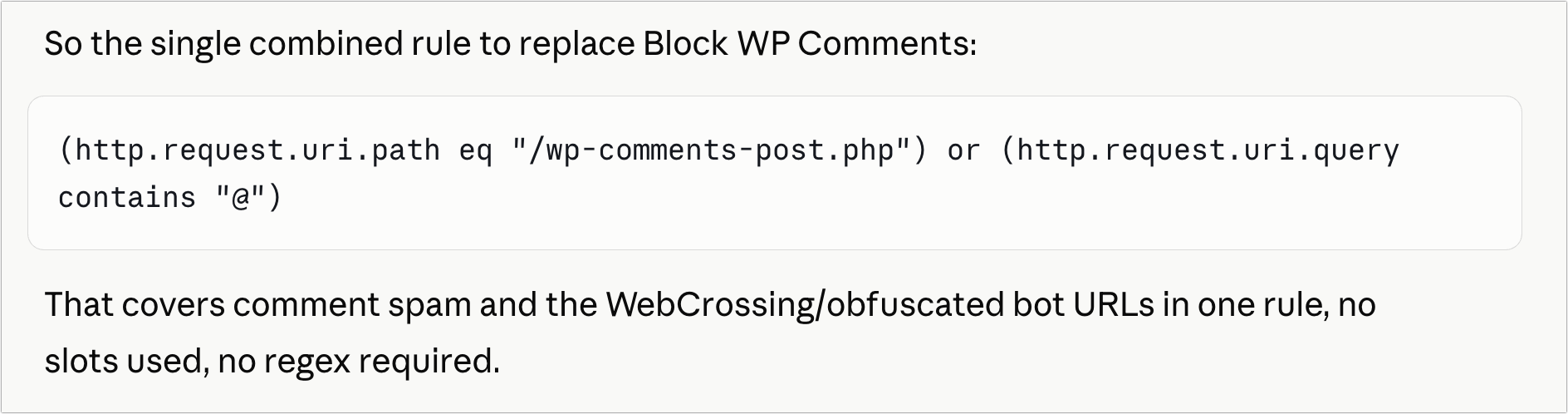
Creating the firewall rule turned out to be more complicated than expected because Cloudflare’s free plan offers only five rules, and I had used them all. Claude explained that I could expand one rule to check for multiple criteria, and after I worked through the fact that free accounts also couldn’t use operator matches, it provided a solution.
Then I moved on to the cache rule for RSS feeds. Claude was clever enough to realize that we have both public blurb-only fees and private full-text feeds for TidBITS members. Although the private feeds are identical apart from the URL, I decided it was safest to go with Claude’s incorrect assumption that they were personalized and keep them out of the caching setup.
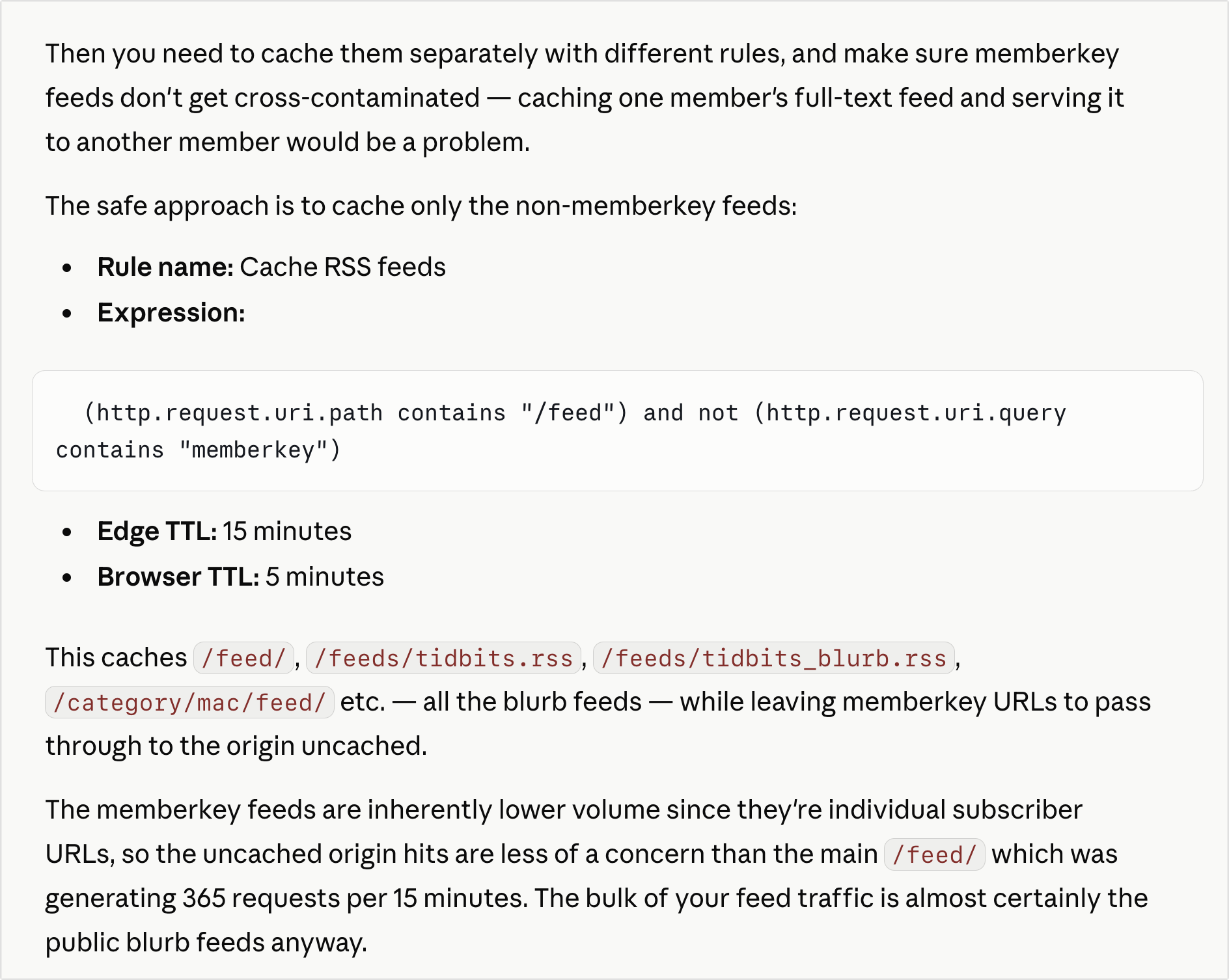
Once that rule was in place, Claude suggested a Terminal command I could run twice in quick succession to see Cloudflare invoke its cache. The first one showed the cache being bypassed, while the second (and subsequent) instances showed a cache hit, indicating that Cloudflare was serving the data rather than our server.

When I turned off Under Attack Mode this time, the site held up—no CPU spike, no excessive traffic. Throughout all this, I had received no complaints from users, which was surprising, but on Friday morning, a reader wrote in to ask why he was being blocked from the site. Once I got him to send a screenshot of the Cloudflare error, which includes a Ray ID at the bottom that I could use to find his traffic in the logs, it instantly became obvious that he was navigating to the TidBITS site from a bookmark he had made during the WebCrossing days. When I asked him to load tidbits.com directly, it worked fine. So if you find yourself being blocked from the TidBITS site, first try navigating there directly to eliminate old bookmarks from the equation, try another browser and device, and then email me with the Ray ID so I can look into it.
In the end, although Cloudways support responded fairly quickly and offered some details that matched what I’d already found through Claude, troubleshooting with AI assistance proved notably successful. As is always the case with AI, I had to exercise caution and think critically about what it was suggesting, but it walked me through a process that would have been significantly harder, slower, and more fraught otherwise. In fact, I learned a lot along the way, so I now understand the Cloudways monitoring reports much better. If something like this happens again, I’ll be starting from a stronger position.
If you find yourself in a similar situation—where things are going wrong and you don’t have an expert to turn to—it’s worth giving your favorite chatbot a try. Just be cautious, make it clarify any unclear or wrong instructions, and ask it about the consequences of any action and how you’d undo it.


That is extremely impressive!
And your management of the dialogue with Claude was excellent.
Thanks for the insights!
Dave
This is a high-level computer lesson in every way, for those of us capable of seeing past the specifics and learning from the workflow.
Adam, while nowhere near as complicated as your problem, I used Claude the other day to figure out why a Rosetta application had suddenly started crashing for no apparent reason. I fed it the crash report, and in its first pass, located the problem. It went further to say that since this was an application that ran under Rosetta, and that Rosetta will be discontinued in the upcoming version of MacOS, the only answer was a workaround in Settings for the application. The problem was that using Sounds in the application caused crashes because it made an illegal call in Rosetta.
I’ve got to say, I was impressed!
I can echo this totally. I’ve recently completed the design and breadboarding of a complex multi-processor device that required me to refresh my ancient electronics knowledge and learn a new programming language. It involved working across four computers, two real and two virtual, and four different operating systems/versions. I could not have done it without Claude. We went up a few blind alleys together, but we learned together as well. Claude is keen to help with the physical build as well.
In fact LLMs’ keenness is something you have to watch, and learn when to get up and walk away, even if it seems callous, otherwise they can embroil you in endless ‘conversations’. Usually interesting, often illuminating, but very time-consuming.
I don’t generally run into problems with them trying to converse too much with me, perhaps because I’m not really interested in anything they say other than what I queried. But I’m going to pay attention to that from now on, since I wonder where it comes from.
I’m a few years retired from writing software, but this well written story makes me think about how AI could have saved me many eye glazing hours of reading tutorials, manuals and stack overflow posts to solve a problem. As a last resort I would post a question and hope someone (as smart as Claude) responded.
As helpful as Claude sounds, retirement is better ;-)
The watchword with chat bots is to generally be cautious. I’m curious if your experience here, or the accumulation of other experiences has altered your level of trust with a chatbot? Even a little?
I’m not sure it has changed, but I was pretty willing to experiment with chatbots before this. I consider this experience a big success, but I don’t think it makes me any more or less cautious about implementing suggestions. If I don’t understand what it’s going to do, or if I think there might be unintended consequences, I’m going to push harder.
The main place where I’ve become more trusting is with coding, simply because I don’t have the knowledge to evaluate the code at all, so I’m limited to evaluating the interaction and output and asking questions about things that worry me. With sysadmin situations like this, I have some general experience that informs the conversations.
I think they are programmed to maintain engagement, by being endlessly ‘helpful’.
I’m a retired software engineer, but still have many friends back at work who have access to AI tools. They don’t use them for most tasks. It’s frequently harder to vet, test and understand the code written by AI tools than to just write it yourself. Plus, the best part of programming is writing code!
So the pattern is the more you understand a subject, the less you trust AI in that area. That’s expected. But the inverse is more problematic: The less you understand a subject, the more you trust it.
This drives me crazy. I’ve been using ChatGPT to solve several technical issues lately (involving a lot of command line tools and services that I was not familiar with) and while ultimately helpful, I hate the way it provides me with 6 steps to do without waiting to find out if the first step even works! This creates so much text I have to scroll many pages back to find step 1 to try that. I finally did what Adam said and tell it only give me one step and a time and confirm it works before moving on. But it didn’t remember that very long and soon switched back to its old habits. I think they are programmed that way to save tokens of repeated queries.
On the positive side, just like with Adam’s problem, it did help me arrive at a solution. Most recently I had it help me set up Tailscale, which I couldn’t get working. I didn’t understand 90% of the networking gobbledegook in the Tailscale docs. So I told ChatGPT my exact situation (my network setup and what wasn’t working) and it gave me a new command line command to try and a setting change and bingo, I got it working! I went on a camping trip and I could remotely login to my computer at home via Tailscale. It worked great. So cool!
The analogy that I’m working with is that I’m acting like a program manager in defining what the code should do. I have literally zero interest in writing code.
I wonder if that would work better if you added it to the general instructions in your profile?
Great idea! I didn’t even know I could do that!
Regarding using agent skills directives when using AI to assist in coding, I’ve found these released by my Swift programming hero Paul Hudson to be very helpful.