iOS 26’s Confusing Hidden Folder Drag Behavior
A TidBITS reader named Stan wrote in recently, thinking he had identified an iOS 26 bug that could make apps completely inaccessible except through search. An Apple Store employee had confirmed what he was seeing, and in my initial testing, I was able to reproduce his results, so I started writing an article explaining the bug.
However, as I wrote, capturing screenshots along the way, I realized that we had all been led astray by a confusing interface. There is a bug, but it’s a subtle cosmetic inconsistency in how iOS 26 provides feedback when a user drags an app from the Home Screen into the App Library, not something that makes apps inaccessible. Which, all things considered, is good!
The Setup
Let’s say you have an app on your iPhone that you want to hide. The correct way to hide an app is to touch and hold its icon, tap Require Face ID, select Hide and Require Face ID, and finally tap the Hide App button after you’ve been sufficiently warned.
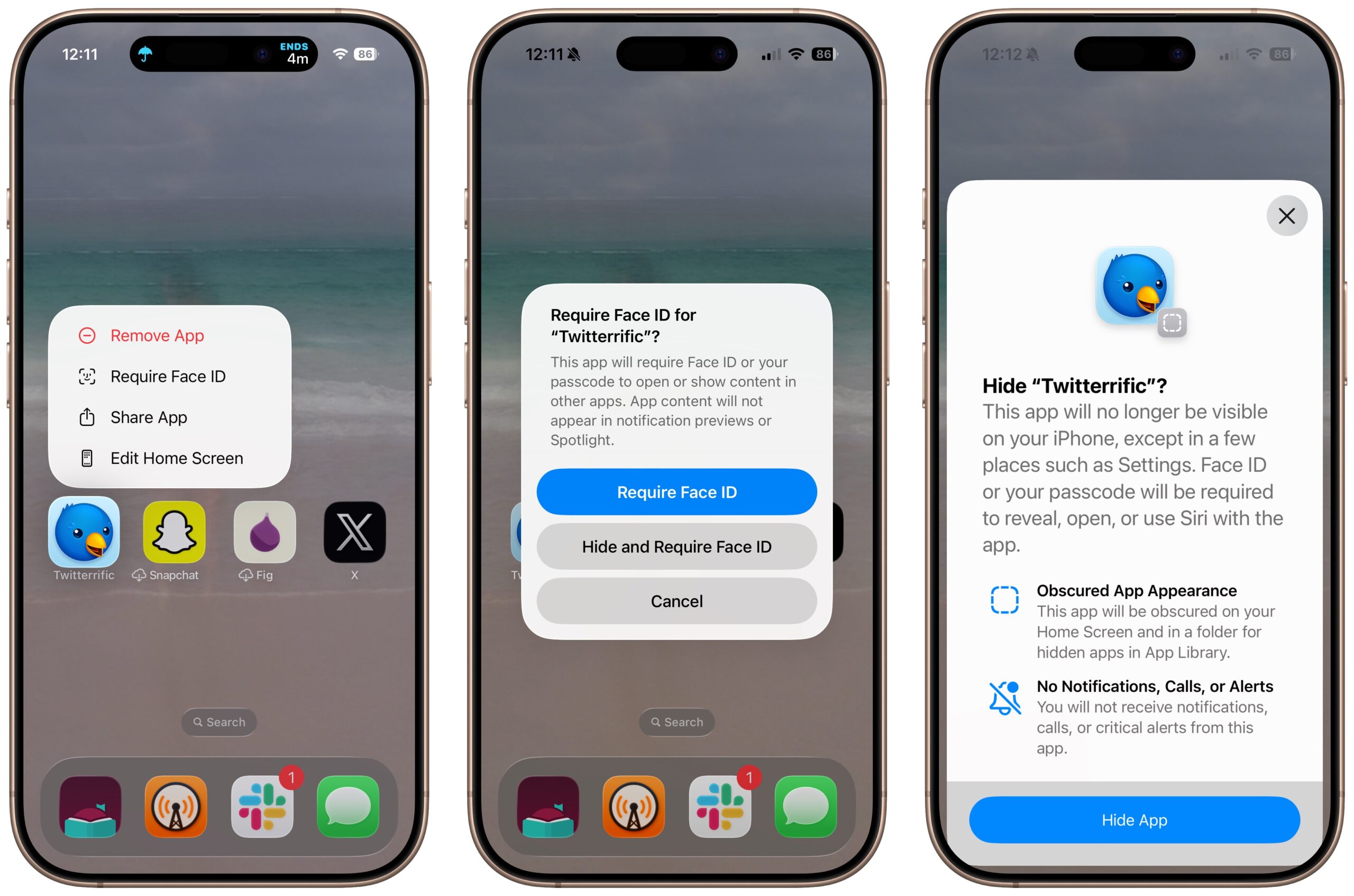
Once hidden, the app appears only in the Hidden folder at the bottom of the App Library (swipe left on the Home Screen until you get to it). To reveal it in the Hidden folder, you must authenticate with Face ID or Touch ID, as I’ve done in the middle screenshot. In fact, you can also see a list of hidden apps in Settings > Apps > Hidden Apps (below all the individual apps). That screen requires biometric authentication, too.
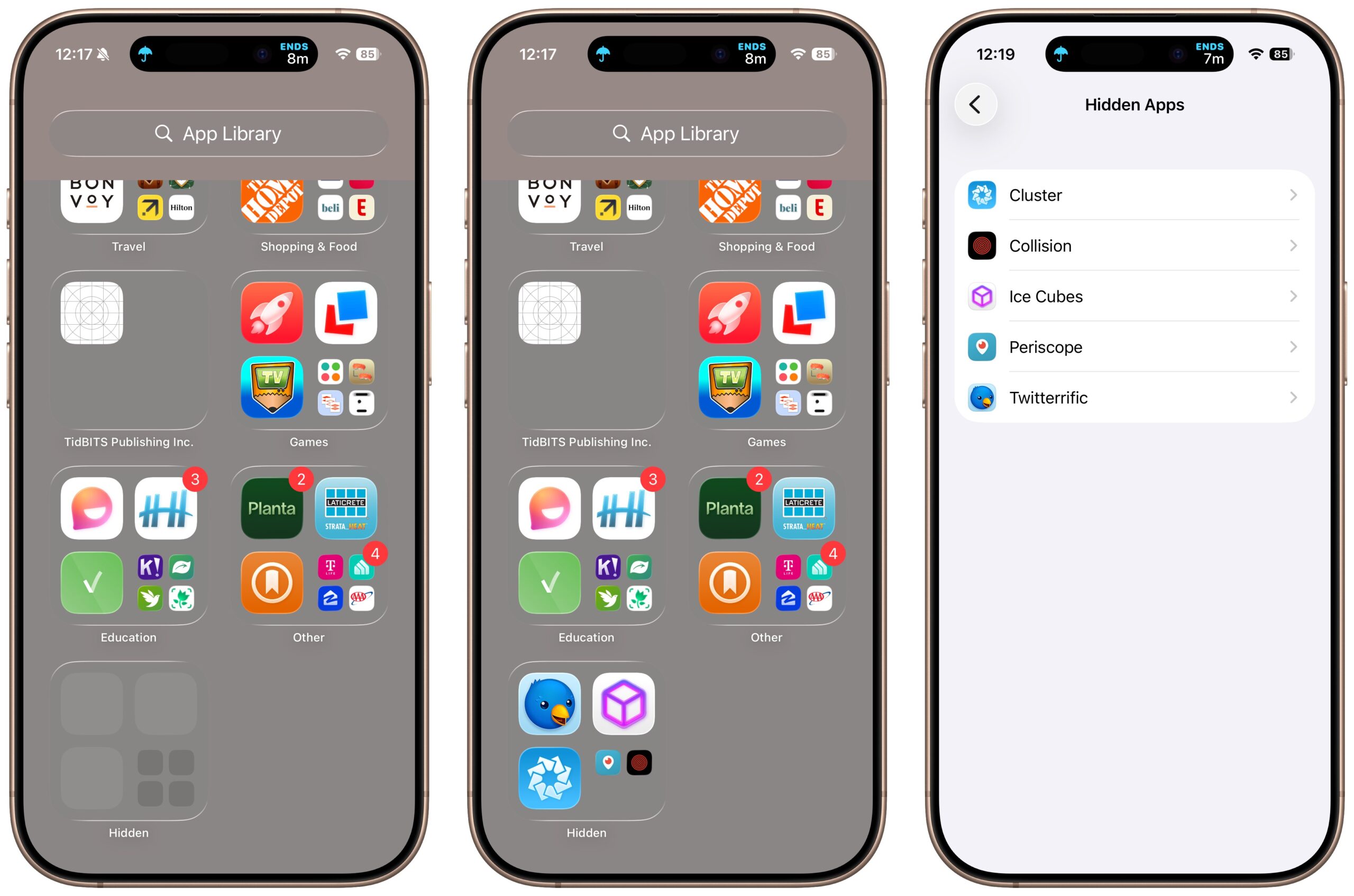
This multi-step process becomes tedious if you want to hide more than a couple of apps, so Stan thought perhaps he could drag an entire folder of apps into the Hidden folder in the App Library. (Another way of moving multiple apps at once is to start dragging an app, then tap additional app icons to add them to the stack.) Regardless of the technique, it’s entirely sensible to believe you could hide apps by dragging them to the Hidden folder, since Apple calls it a folder, and you populate other folders on the Home Screen by dragging apps into them.
Unfortunately, iOS doesn’t let you work that way.
Veering into Left Field
Here’s where my testing went awry. When you drag an app to the Hidden folder in the App Library, iOS responds in one of two ways: either it seems to accept the app icon into the Hidden folder, or it appears to send it back to its native folder in the App Library.
At this point, it’s important to remember that the App Library contains all apps at all times. Dragging an app from the Home Screen to the App Library has only one effect: removing the app from the Home Screen. However, because Apple is making drags to the App Library seem like drags to regular folders, the interface gives the mistaken impression that you can somehow affect the App Library. (You can’t.) In this screen recording, you can see both behaviors, plus a variant on the second one that’s more confusing.
Note the following:
- When I drop the green Planta icon on the Hidden folder, it appears to go right in.
- When I drop the white, red, and blue Letterpress icon on the Hidden folder, it jumps to the Games folder, where it normally resides.
- When I drop the orange Etsy icon on the Hidden folder, it zips out of sight, but when I scroll up, you can see that it, too, has returned to its regular Shopping & Food folder.
Now you can imagine what Stan ran into. The app he dropped into the Hidden folder was seemingly accepted, or perhaps it zipped out of sight without him noticing. Because dragging any app to the App Library removes it from the Home Screen—regardless of where you drop it—the app vanished from view, creating the illusion that it had been moved into the Hidden folder.
Because it didn’t really move, unlocking the Hidden folder with Face ID showed that nothing was in there. Nor did the app appear in Settings > Apps > Hidden Apps. But because the app was still on the iPhone, if only in the App Library, it showed up in a search. Stan didn’t think to poke around in other folders in the App Library because he had been fooled by the Hidden folder accepting the dropped app.
So the real question becomes: Why does the Hidden folder seem to accept some apps while others visually sort into other App Library folders? I found a handful of apps that appear to be accepted into the Hidden folder, like Planta, whereas many others, like Letterpress and Etsy, zip to their regular folders. I couldn’t identify any aspect of an app that would place it in one category or the other. In fact, when I had to redo the screen recording just before publication, Planta and Letterpress swapped behaviors from my first set of tests. Inexplicable!
Suggested Solutions
Ultimately, this may be a situation where Apple needs to simplify the iOS interface. As far as I’m aware, the only utility of dragging app icons from the Home Screen to the App Library is to remove them from the Home Screen. The seeming acceptance of icons dropped on the Hidden folder should be eliminated, and Apple would ideally make the visual result of icons moving back to their App Library folders clearer, particularly when the folder is off-screen.
Finally, let’s return to Stan’s original goal: hiding apps in bulk. He had read a concerning New York Times article about how iPhones were being stolen in London, but since the thieves couldn’t bypass Activation Lock, they would use the contact information entered in Lost Mode to harass the victim’s relatives into turning it off. He hypothesized that if he hid his banking apps, a thief who had stolen his iPhone (and presumably his passcode) wouldn’t find them or be able to get past Face ID.
He was on the right track, but needed one more setting: Stolen Device Protection, which requires Face ID for sensitive activities in unfamiliar locations (see “Turn On Stolen Device Protection in iOS 17.3,” 25 January 2024). When Stolen Device Protection is turned on, it also protects locked apps that require Face ID so they can’t be opened with a passcode fallback. Hiding them is ancillary—turning on Require Face ID along with Stolen Device Protection is all that’s necessary.


Very unintuitive and unexpected behaviour.
Why on earth do some apps look like they’re going into the Hidden folder but stay on the Home Screen and don’t appear in said Hidden folder, while other apps look like (and actually move) into their App Library category folder and disappear from the Home Screen? No reason or rhyme to which does which and when.
Surely a bug?
While it’s automatically generated, TBH I generally ignore the App Library, as I’ve always filed apps myself using my own preferred naming scheme for folders before it existed, so couldn’t be bothered dealing with it.